
The journal
How to check HTTP response headers in Chrome
Open Chrome DevTools, use the Network panel, and read the Headers tab to see Response headers like Content-Type alongside Request headers like Accept. Learn the exact steps, how to copy headers, and how to avoid confusing Content-Type with Content-Encoding.

Open Chrome DevTools, go to the Network panel, select the request, then open Headers. Read Content-Type under Response Headers and Accept under Request Headers to verify what the server returned versus what the browser asked for. You can also copy headers or the full response for debugging.
Step-by-step in Chrome DevTools
- Open DevTools: Ctrl+Shift+I (Windows/Linux) or Cmd+Option+I (Mac), then switch to the Network tab. Reload the page to record requests. These steps and the Headers view are documented in Chrome’s Network panel reference and W3C’s headers guide (Chrome DevTools network reference; W3C: Checking HTTP Headers).
- Pick the right request: The top entry is usually the main document. Click a row to open its details, then open the Headers tab to see General, Response Headers and Request Headers (Chrome DevTools network reference).
- Find the headers you need: Under Response Headers, look for Content-Type (for example, text/html; charset=utf-8). Under Request Headers, look for Accept (for example, application/json). The W3C guide also highlights checking the charset parameter on Content-Type (W3C: Checking HTTP Headers).
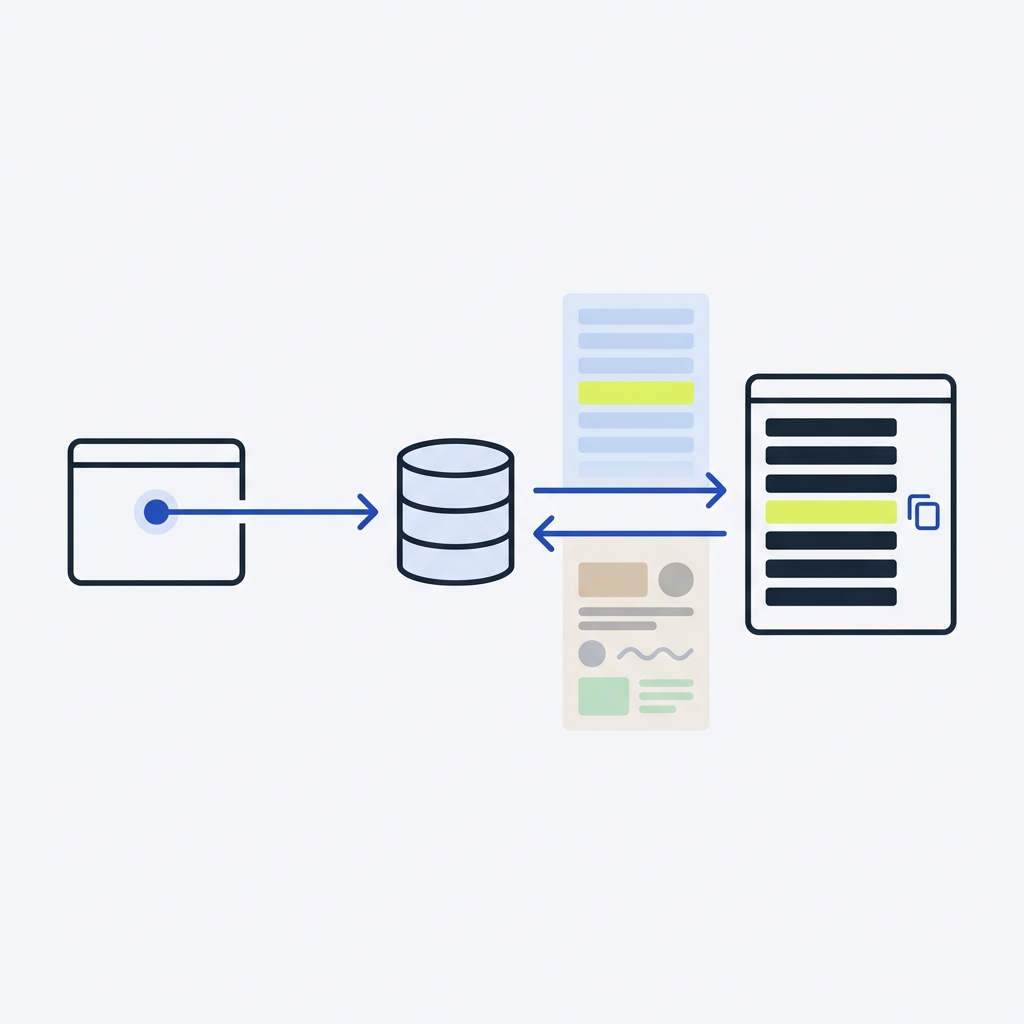
Content-Type vs Accept: what you’ll see in DevTools
Content-Type (response)
Content-Type tells you the media type of the response body (for example, application/json or text/html). If present, a charset parameter on Content-Type defines the character encoding and, per W3C, this HTTP header overrides in-document encoding declarations (W3C: Checking HTTP Headers).
Accept (request)
Accept is sent by the browser or client to indicate what media types it can handle. The server uses content negotiation and then indicates its choice in the response Content-Type (MDN: Accept).
Avoid a common mix-up: Content-Encoding vs Content-Type
Content-Encoding (response) describes how the payload was encoded for transport (for example, gzip, br, zstd). It is negotiated via Accept-Encoding in the request and is different from Content-Type, which describes the media type of the original content (MDN: Content-Encoding).
Copying headers or the full response
- Copy only headers: Right-click a request row in the Network panel, choose Copy, then Copy response headers to share just the headers (Chrome for Developers blog: Copy the response).
- Copy the body too: Use Copy response to capture the entire payload when the body and Content-Type must be reviewed together (Chrome for Developers blog: Copy the response).
- View raw header order: In the Headers tab, click view source to see headers in the order received, not alphabetically (Chrome DevTools network reference).
Quick troubleshooting tips
- Preserve and reload: If your request disappears on navigation, enable Preserve log and reload so the prior requests remain visible (Chrome DevTools network reference).
- Bypass cache while testing: Check Disable cache in the Network panel to ensure you are inspecting a fresh response and full headers (Chrome DevTools network reference).
- Choose the final resource: Redirects and other intermediaries appear as separate entries. Confirm you are inspecting the final 200/3xx/4xx entry for the URL you care about (Chrome DevTools network reference).
- Provisional headers note: If you see “Provisional headers are shown,” it can be due to cached or invalid requests, or security reasons. Disable caching and try again (Chrome DevTools network reference).
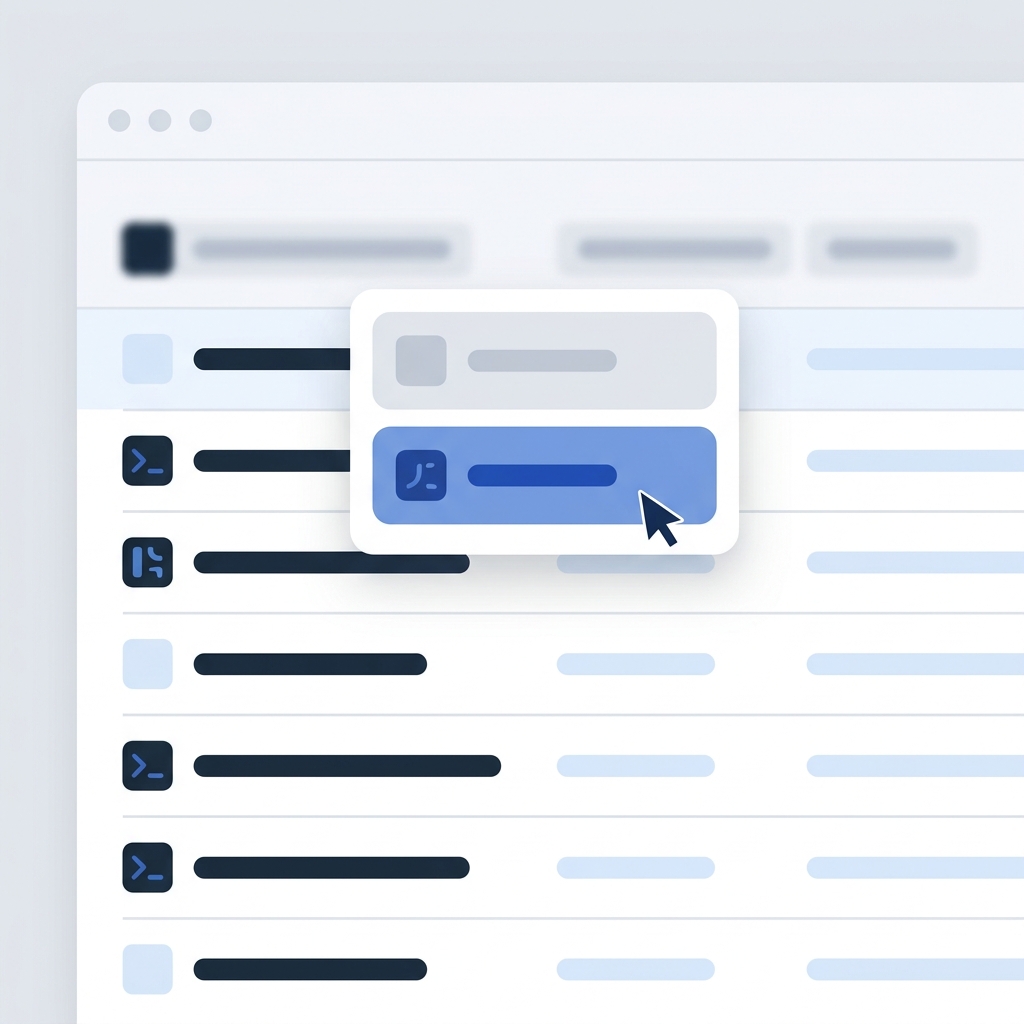
Verify Content-Type vs Accept in DevTools
Related on Stack & Method
Where exactly are response headers in DevTools?
Select the request in Network, then open the Headers tab. Response Headers appear below the General section, alongside Request Headers. You can also click view source to see raw header order (Chrome DevTools network reference).
Can I simulate different headers locally?
DevTools supports local overrides of HTTP response headers for testing. See the Network features reference for entry points (Chrome DevTools network reference).